You hit send. Your email lands in spam. Again.
If your emails are being filtered, blocked, or silently rejected, the problem is almost always the same: your domain is not authenticated.
Email authentication is a set of technical standards that prove your messages are genuinely coming from you. Gmail and Yahoo made authentication mandatory for bulk senders in February 2024. And in 2026, inbox providers are getting even stricter.
What Is Email Authentication and Why Does It Matter in 2026?
When you send an email, receiving mail servers run background checks: Is this sender who they claim to be? Is this domain allowed to send this email? Has the message been tampered with in transit?
Email authentication answers those questions through a set of DNS-based standards. Without authentication, your emails look suspicious to inbox providers, even if your content is completely legitimate.
The Real-World Impact
Here is what happens when authentication is missing or broken:
- Emails land in spam or promotions folders
- Gmail and Yahoo reject messages from unverified senders
- Criminals can spoof your domain to send phishing emails
- Your sender reputation drops, hurting all future campaigns
- Transactional emails (receipts, onboarding, password resets) go missing
For e-commerce brands on Shopify or WooCommerce, a missed abandoned-cart email is lost revenue. For a SaaS startup in Bengaluru or Sydney, a failed onboarding email means churn on day one. For a marketing agency managing client campaigns, poor deliverability is a billing crisis.
|
2024 Requirement
Update: In
February 2024, Gmail and Yahoo began requiring all bulk senders (those
sending 5,000+ emails per day) to have SPF, DKIM, and DMARC configured. As of
2026, these requirements have become standard expectations across most major
inbox providers globally. |
What Is SPF?
(The Guest List for Your Email Domain)
SPF stands for Sender Policy Framework. Think of it as a VIP guest list for your domain.
When you add an SPF record to your DNS, you are publishing a list of mail servers that are officially allowed to send email on your domain's behalf. When a receiving server gets a message claiming to be from your domain, it checks that list. If the sending server is on it, the message passes. If not, it is flagged or rejected.
Example SPF DNS Record
|
v=spf1
include:mailerlogic.com ~all |
Breaking this down:
v=spf1 declares this is an SPF record.
include:mailerlogic.com authorises MailerLogic's sending servers.
~all means any server not on the list should be treated with suspicion (soft fail). Use -all for a strict hard fail.
If you send through multiple platforms, you combine them in one record:
|
v=spf1
include:mailerlogic.com include:amazonses.com -all |
How to Set Up SPF: Step-by-Step
1. List every service sending email from your domain. This includes MailerLogic, any transactional email provider, and your CRM.
2. Get the SPF include string. MailerLogic provides this in your account under Settings > Sending Domains.
3. Build your SPF record. Combine all includes into a single TXT record. You can only have one SPF record per domain.
4. Add it to your DNS. Log in to your domain registrar (GoDaddy, Cloudflare, Namecheap, etc.) and add a TXT record at your root domain.
5. Verify it. In MailerLogic, go to Authentication Monitor and run a domain check to confirm your SPF record is valid and resolving correctly.
|
⚠️ Critical SPF Mistake: Never create more than one SPF TXT record for the
same domain. Multiple records cause SPF failures. If you need to add a new
sending service, edit your existing record, do not add a new one. |
What Is DKIM?
(The Digital Seal on Every Email You Send)
DKIM stands for DomainKeys Identified Mail. It adds a digital signature to every outgoing email, like a wax seal on a letter.
When your email arrives at its destination, the receiving server uses a public key stored in your DNS to check the signature. If it matches, the server knows two things:
The email genuinely came from your domain, and
The content was not changed in transit.
This is especially important for transactional emails and cold outreach, where even minor alterations to a message can trigger spam filters.
Example DKIM DNS Record
|
mailerlogic._domainkey.yourdomain.com TXT "v=DKIM1; k=rsa;
p=MIGfMA0GCSqGSIb3DQEBAQUAA4GNADCBiQ..." |
The selector (here, mailerlogic) is a label identifying which key to use.
The p= value is your public key, provided by MailerLogic during domain setup.
How to Set Up DKIM: Step-by-Step
6. Go to Sending Domains in MailerLogic. Navigate to Settings > Sending Domains and click Authenticate Domain.
7. MailerLogic generates your DKIM key pair. You will see a CNAME or TXT record to add to your DNS.
8. Add the record to your DNS provider. Copy the name and value exactly as provided; even a small typo will cause verification to fail.
9. Click Verify in MailerLogic. Once DNS has propagated (usually within an hour), MailerLogic will confirm that DKIM is active and signing your emails.
10. Rotate your DKIM keys periodically. MailerLogic recommends rotating keys every 6 to 12 months as a security best practice.
|
💡 Why DKIM matters for cold outreach: Emails without a valid DKIM signature are far more
likely to land in spam. If you are running outreach campaigns through
MailerLogic for clients in the US, India, or Australia, DKIM is the single
most important authentication step for inbox placement. |

What Is DMARC?
(Your Domain's Enforcement Policy)
DMARC stands for Domain-based Message Authentication, Reporting and Conformance.
If SPF is the guest list and DKIM is the wax seal, DMARC is the security guard at the door who decides what to do when something fails both checks.
DMARC tells receiving servers exactly what to do when an email claims to be from your domain but fails SPF or DKIM: ignore it, send it to spam, or reject it entirely.
DMARC also sends you regular reports so you know exactly who is sending email using your domain, whether it is your legitimate services or bad actors trying to spoof you.
DMARC Policy Options
|
Policy |
What Receiving Servers Do |
When to Use It |
|
p=none |
Deliver normally. Send reports only. |
Start here. Collect data without affecting delivery. |
|
p=quarantine |
Route failing emails to spam/junk. |
After you confirm all legitimate sources pass. |
|
p=reject |
Block failing emails entirely. |
Full protection. Stops phishing and spoofing cold. |
Example DMARC DNS Record
|
_dmarc.yourdomain.com TXT "v=DMARC1; p=quarantine;
rua=mailto:dmarc-reports@yourdomain.com; pct=100" |
v=DMARC1 — declares this is a DMARC record.
p=quarantine — quarantine failing messages.
rua=mailto: — where to send aggregate reports.
pct=100 — apply this policy to 100% of messages.
How to Set Up DMARC: Step-by-Step
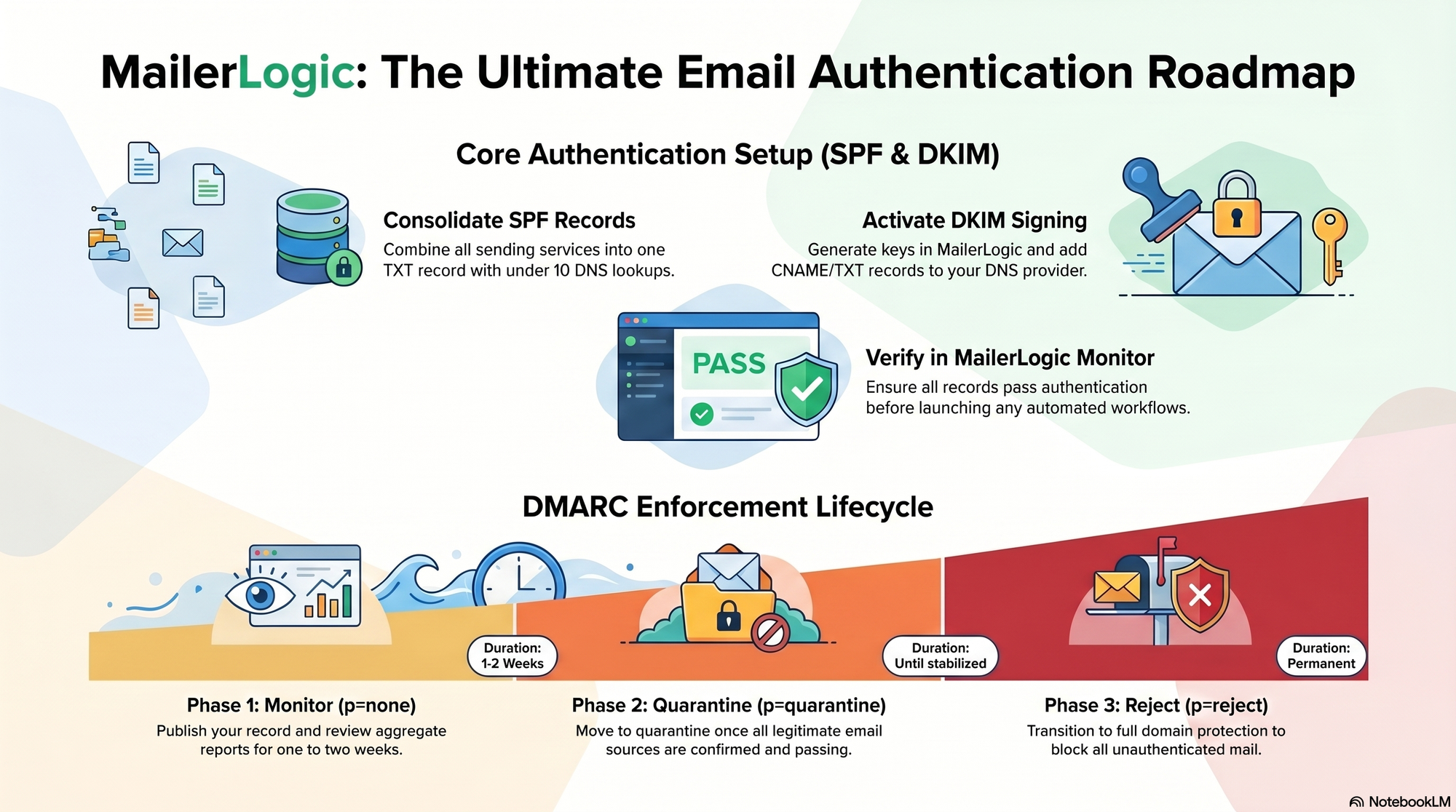
11. Start with p=none. Publish your DMARC record with a monitoring-only policy first. This collects data without affecting any email delivery.
12. Add a reporting address. Set rua= to an email address you control, or configure MailerLogic's DMARC reporting to receive and parse these reports automatically.
13. Review your DMARC reports for one to two weeks. Look for any legitimate sending sources that are failing SPF or DKIM alignment.
14. Fix any failing sources. Ensure every service sending on your behalf, including MailerLogic, any CRM, and transactional services, passes both SPF and DKIM.
15. Move to p=quarantine. Once you are confident all legitimate email passes, increase enforcement.
16. Graduate to p=reject. Full enforcement. Spoofed emails using your domain are blocked before they reach anyone's inbox.
|
⚠️ DMARC Alignment Trap: Your SPF and DKIM must align with the From: address
domain, not just any sending domain. Many senders fail DMARC because their
sending platform's domain does not match their From: header. MailerLogic's
Authentication Monitor checks alignment automatically so you catch this issue
before it affects campaigns. |
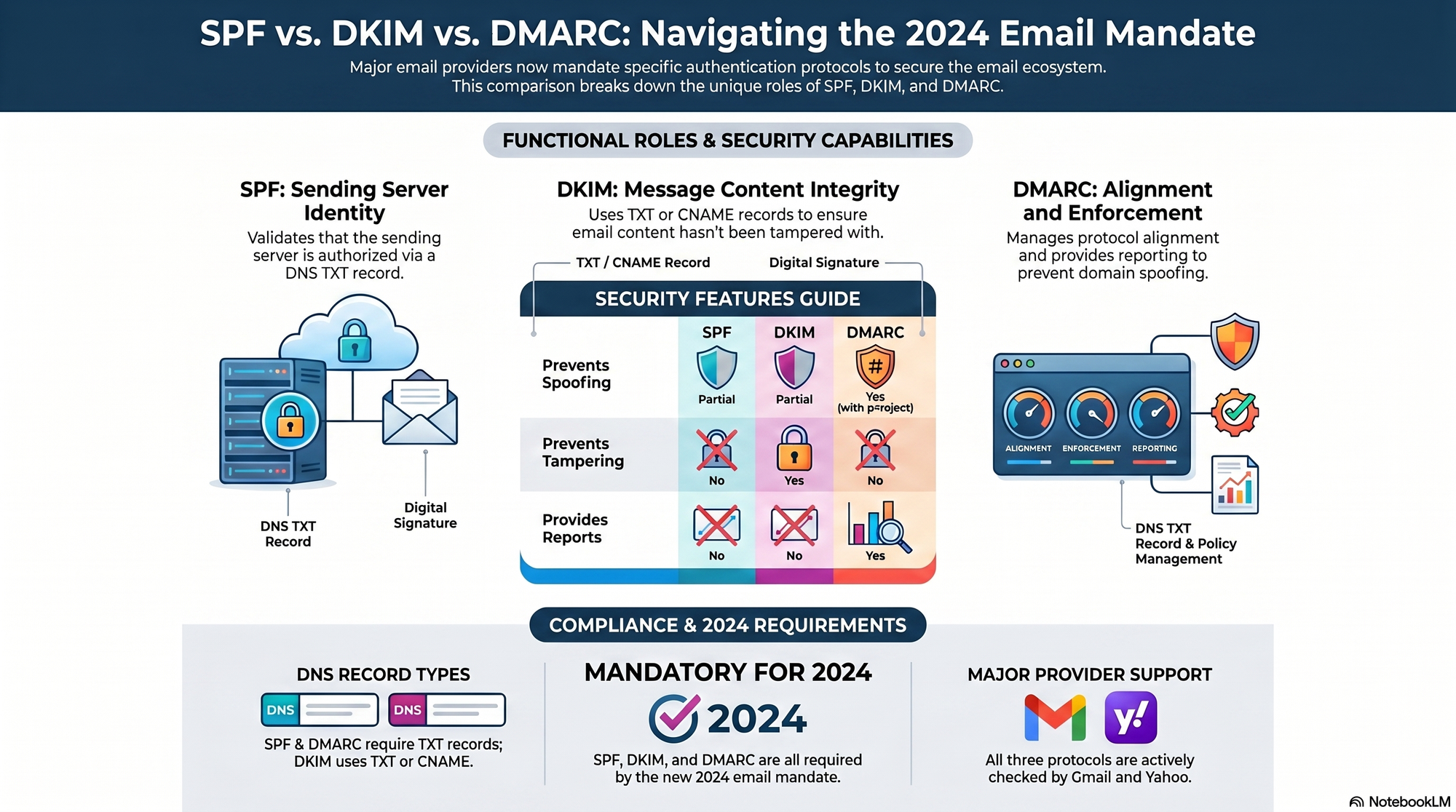
SPF vs DKIM vs DMARC: Side-by-Side Comparison
|
Feature |
SPF |
DKIM |
DMARC |
|
What it verifies |
Sending server identity |
Message content integrity |
Alignment + enforcement |
|
DNS record type |
TXT |
TXT or CNAME |
TXT |
|
Prevents domain spoofing |
Partial |
Partial |
Yes (with p=reject) |
|
Prevents message tampering |
No |
Yes |
No |
|
Provides reports |
No |
No |
Yes |
|
Checked by Gmail/Yahoo |
Yes |
Yes |
Yes |
|
Required by 2024 mandate |
Yes |
Yes |
Yes |
Why Authentication Matters for Your Business
Email Marketers and Newsletter Senders
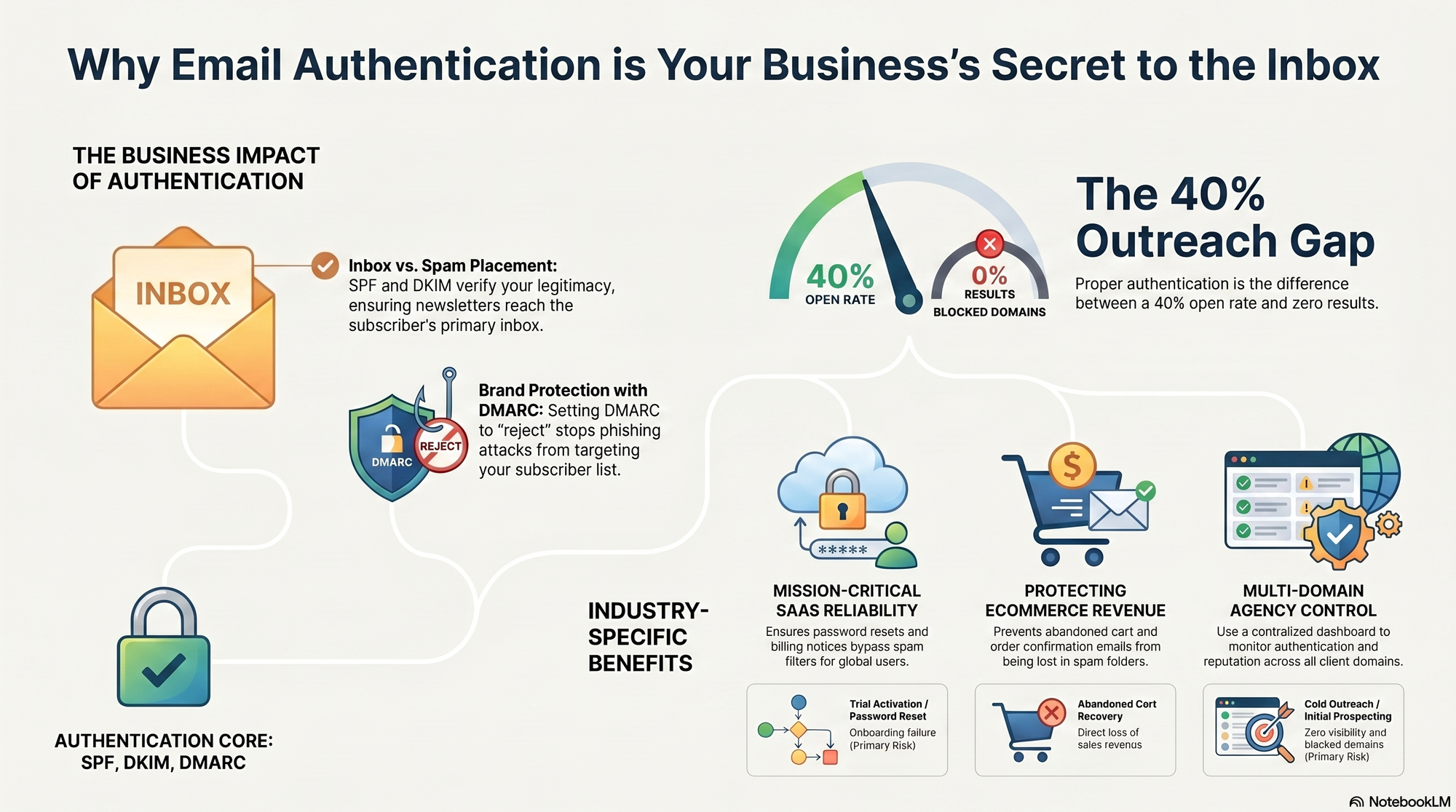
If you send newsletters or promotional campaigns through MailerLogic, authentication is what separates inbox placement from spam placement. With SPF and DKIM active, your emails are recognised as legitimate. With DMARC at p=reject, your brand is protected from phishing attacks that target your subscriber list.
SaaS and Startup Founders
Transactional emails are mission-critical for SaaS businesses. Welcome emails, trial activation links, password resets, and billing notices must reach the inbox reliably.
Founders in Bengaluru, San Francisco, or Sydney sending through MailerLogic should complete domain authentication before sending a single onboarding email. MailerLogic's domain setup wizard walks you through SPF, DKIM, and DMARC in under ten minutes.
eCommerce Brands
Shopify and WooCommerce stores depend on email for abandoned cart recovery, order confirmations, and promotions. Authentication is the foundation of deliverability. One spam placement for an abandoned-cart sequence can translate directly into lost revenue. MailerLogic's inbox placement monitoring lets you see exactly where your emails are landing, inbox, spam, or missing entirely, across Gmail, Outlook, and Yahoo.
Agencies Managing Multiple Client Domains
Agencies in the US, Australia, and India managing email campaigns for multiple clients need to maintain separate authentication records for every client domain. MailerLogic's multi-domain dashboard gives you a single view of authentication status, inbox placement, and sender reputation across all your clients, dramatically reducing troubleshooting time.
Cold Outreach Campaigns
Cold outreach has the lowest tolerance for authentication failures. Inbox providers are extremely suspicious of cold email from domains without strong authentication. Before launching any outreach campaign through MailerLogic, use the Authentication Checker to confirm SPF, DKIM, and DMARC are all passing. It is the difference between a 40% open rate and zero.
Common Email Authentication Mistakes (and How to Fix Them)
|
Mistake |
Why It Causes Problems |
Fix |
|
Multiple SPF TXT records |
DNS returns permerror; SPF fails completely |
Merge all includes into one TXT record |
|
Exceeding 10 DNS lookups in SPF |
SPF permerror; emails fail authentication |
Use MailerLogic's SPF checker to count and reduce lookups |
|
DKIM key never rotated |
Leaked or old keys remain trusted |
Rotate every 6–12 months via MailerLogic Sending Domains |
|
Staying on DMARC p=none forever |
No enforcement; domain remains spoofable |
Move to quarantine then reject after reviewing reports |
|
Misaligned From: domain |
DMARC fails even when SPF and DKIM both pass |
Ensure From: matches the authenticated sending domain |
|
Not listing all sending sources |
Legitimate emails fail SPF |
Audit all services sending from your domain in MailerLogic |
Gmail and Yahoo 2024 Requirements
In February 2024, Gmail and Yahoo implemented mandatory authentication requirements for bulk senders. These requirements remain in full effect in 2026, and inbox providers continue to raise enforcement standards globally.
Requirements for Senders of 5,000+ Emails Per Day
✓ SPF or DKIM must be configured for your sending domain
✓ DMARC must be published with at least p=none
✓ Marketing and promotional emails must support one-click unsubscribe
✓ Spam complaint rates must stay below 0.3% (measured in Google Postmaster Tools)
For senders below 5,000 emails per day, SPF and DKIM are still strongly recommended. Inbox providers use authentication as a primary spam classification signal at every volume level.
|
🌏 Global Applicability: These requirements apply to every sender whose
recipients use Gmail or Yahoo, regardless of whether your business is based
in the US, Australia, or India. If your audience has Gmail or Yahoo
addresses, you must meet these standards. MailerLogic's Compliance Dashboard
shows whether your sending domains meet all current requirements. |
Complete Email Authentication Setup Checklist
Use this checklist before launching any email campaign, onboarding sequence, newsletter, or automated workflow through MailerLogic:
Conclusion
SPF, DKIM, and DMARC are not advanced technical configurations reserved for enterprise IT teams. They are the baseline for any business that sends email, newsletters, transactional messages, onboarding sequences, or cold outreach.
Without authentication, you are fighting inbox providers on every send. With it, you build the sender reputation that keeps your emails landing where they belong: in the inbox.
|
Monitor your authentication with
MailerLogic: MailerLogic's Authentication
Monitor, Inbox Placement Testing, and DMARC Reporting give you everything you
need to verify your setup, monitor your sender reputation, and catch
deliverability issues before they hurt your campaigns. If you want real-time
visibility into your email authentication and inbox placement, MailerLogic is
built for exactly that. |
Email Authentication FAQs
SPF verifies senders, DKIM secures messages with signatures, and DMARC enforces authentication policies and reporting.
Yes. Together, SPF, DKIM, and DMARC improve security, trust, and inbox placement.
Common reasons include DMARC alignment issues, spam complaints, or missing authentication records.
Most DNS updates work within a few hours, but full propagation may take up to 48 hours.
Yes. Multiple DKIM keys are supported as long as each uses a different selector.
Start with p=none to monitor reports before moving to stricter policies.
Yes. Authentication improves deliverability and reduces spam risks for all senders.